 Site Moving Day
Note 02
Take an inventory before you move
Last reviewed
In brief
- Make one list of every web address on the site.
- Mark each one: keep, change or drop.
- Do this before you copy anything.
Why a list comes first
You can't protect what you've forgotten. A URL is the web address of one page or file, like example.com/contact/. Google says it's important to map your old site's URLs to the new site's URLs.[1] You can't map addresses you haven't listed.
An inventory is that list. For a small site it's quick work.
Where to find the addresses
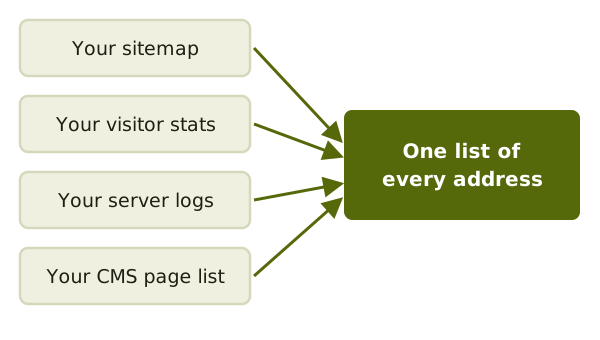
Start with your most important ones. Google suggests a few places to look.[1]
- Your sitemap: a file that lists the pages you want search engines to find.
- Your visitor stats or server logs, which show the pages people actually open.
- Your site's own page list, if it runs on a content management system (a CMS).
Google says a CMS can usually give you a list of every address that holds content.[1]
Don't forget pictures and downloads
Pictures, videos, scripts and style files have addresses too. Google says to include images and videos in your plans.[1] A PDF menu might get more visits than a page does.
Fill in a simple sheet
Use a spreadsheet. One row per address. Add three columns: keep it or not, and where it will live afterwards.
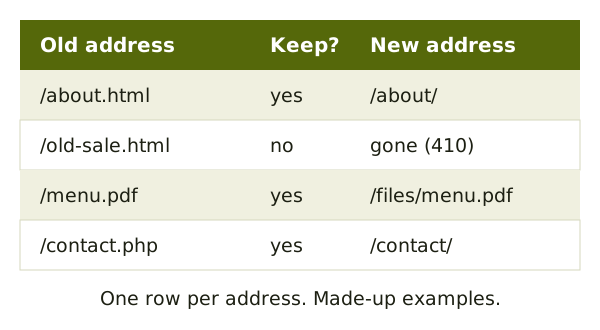
The rows are made-up examples. Yours will differ.
Decide: keep or drop
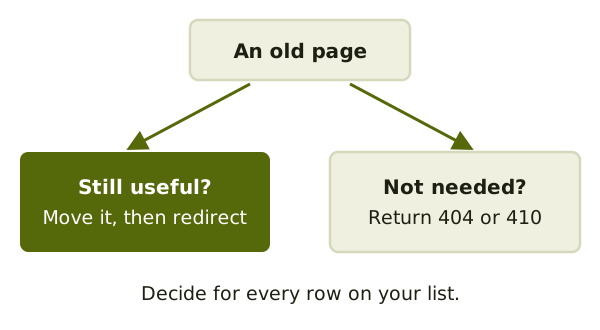
Not every page deserves to travel. An old sale page from years ago may help no one.
For pages you drop, Google says the old address should return an HTTP 404 or 410 error on the new site.[1] Those codes tell browsers and search engines the page is gone.
Also list the settings
Write down anything you set up by hand: forms, redirects, the places where visitor stats are added, and any verification files. The next note shows which ones are easy to lose.
Add the logins too. You'll need access to the old host, the new host and wherever you manage the domain name. Collect them now, so you aren't hunting for a password on switch day.
Last, take a few screenshots of the main pages. After the move, they show what "right" looked like.
Now you're ready to copy: copying the site over.
Sources
- Site Moves and Migrations, Google Search Central (accessed 2026-11-05)