 Site Moving Day
Note 03
Copying the site to its new home
Last reviewed
In brief
- Back up first, then copy.
- Files and database travel together.
- Copy the small settings too.
Back up before you touch anything
A backup is a spare copy kept somewhere safe. If the move goes badly, you can start again from it.
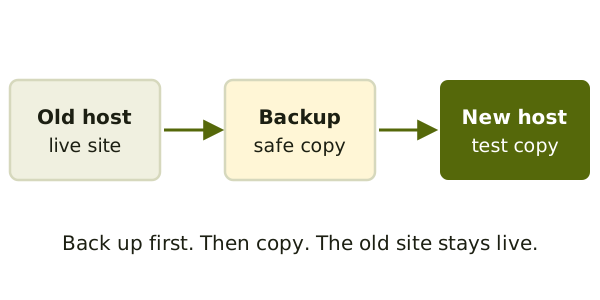
WordPress's guide begins with a backup of the directory, images, plugins and other files, plus the database.[1] The idea works for any platform. Download everything, and keep it off the old host.
The old site stays live while you copy. Nothing changes for visitors yet.
Copy to the new host
Google's advice is to upload a copy of your site to the new provider first.[2] What "a copy" means depends on how your site is built.
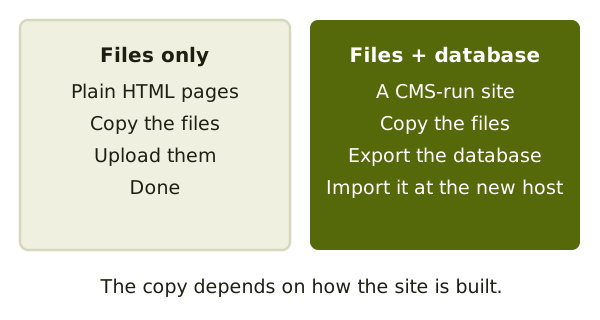
Plain HTML site: copy the files across. That is all.
CMS site: a CMS (content management system) is software that builds pages from stored content. Google says to set up the CMS, preferably the same one as before, and import the old content.[3] The copy may include a database export that you import in the new place.[2]
Fix the connection details
A database has a name, a user and a password. They are often different at the new host. In WordPress, if the database name or user changes, you edit wp-config.php with the right values.[1] Other platforms keep these details in their own settings file.
Small settings people lose
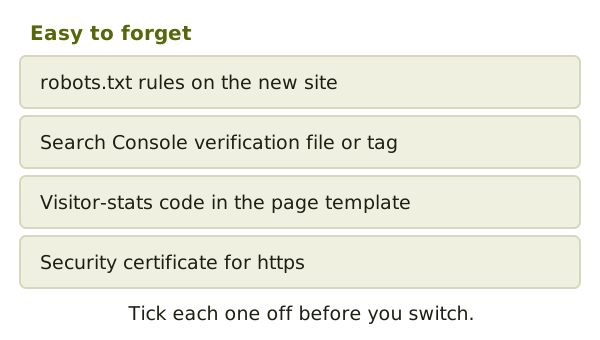
These are quiet and easy to miss.
The robots file. A robots.txt file tells search engines which parts of the site to skip. Google says to set it up on the new site so its rules block only the parts you want blocked.[3] Some people block everything while building. That's fine for now. Remember to undo it before the switch.
Verification. Did you prove to Google that you own the site by uploading a file? Google says to put that file in your new copy.[2]
Visitor stats and certificates. Check that the stats code is in your page template. Check that the new host serves your pages over https.
Next, check that the copy works: testing the new copy.
Sources
- Migrating WordPress, WordPress Advanced Administration Handbook (accessed 2026-11-05)
- Changing Your Web Hosting and SEO, Google Search Central (accessed 2026-11-05)
- Site Moves and Migrations, Google Search Central (accessed 2026-11-05)